Running your Treasurer’s Report
Watch Video
There are a few ways to run a Treasurer’s Report in MoneyMinder.
One is to click the Actual button in the Financial Overview section on the Home Page. This takes you directly to the Treasurer’s Report.

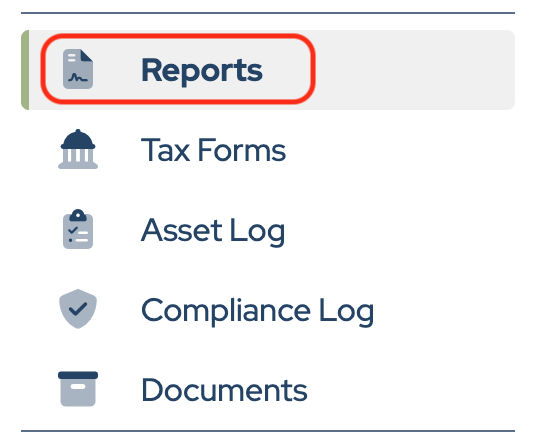
Another way is to click Reports in the sidebar.
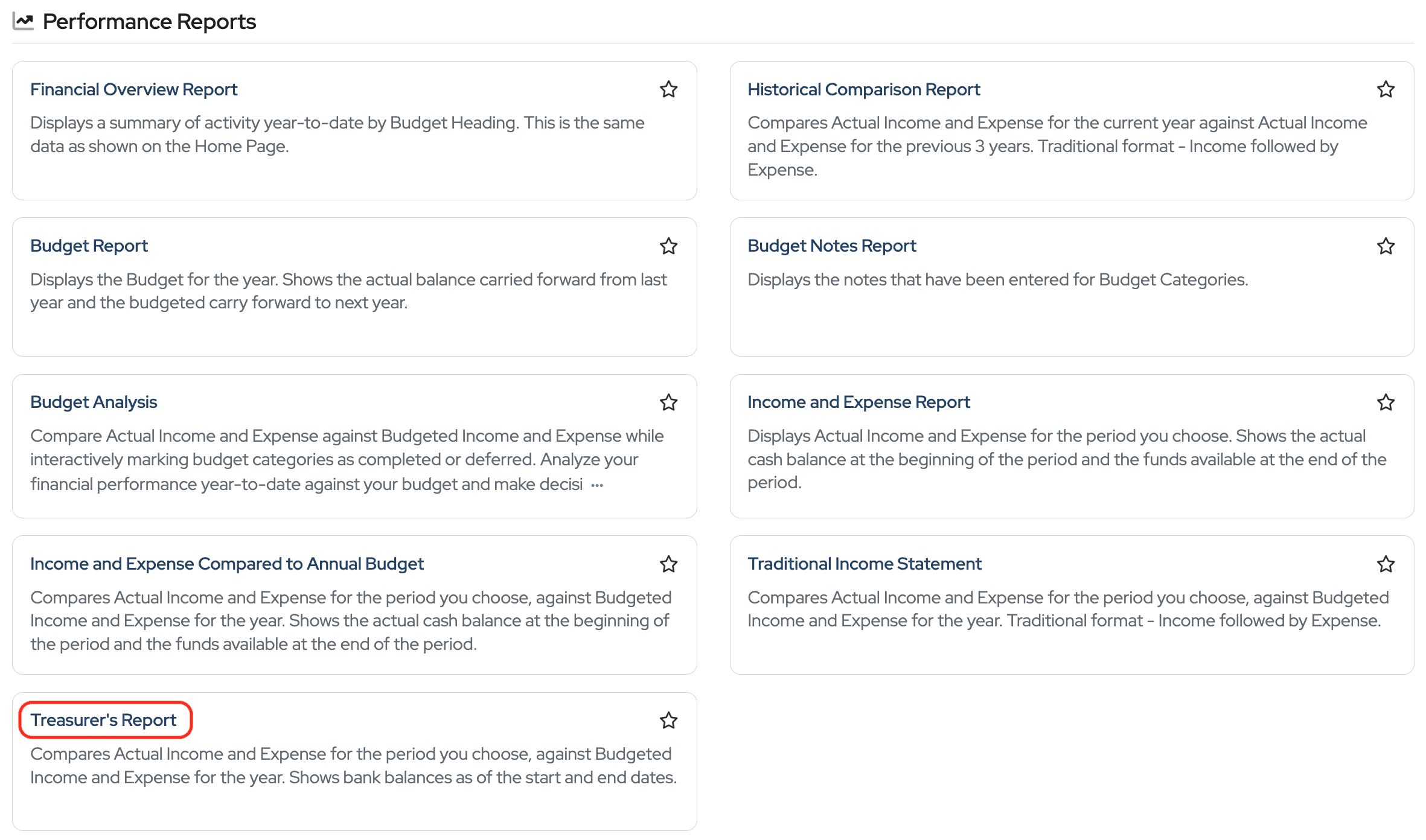
Scroll to the bottom of the Performance Reports section and click Treasurer’s Report.
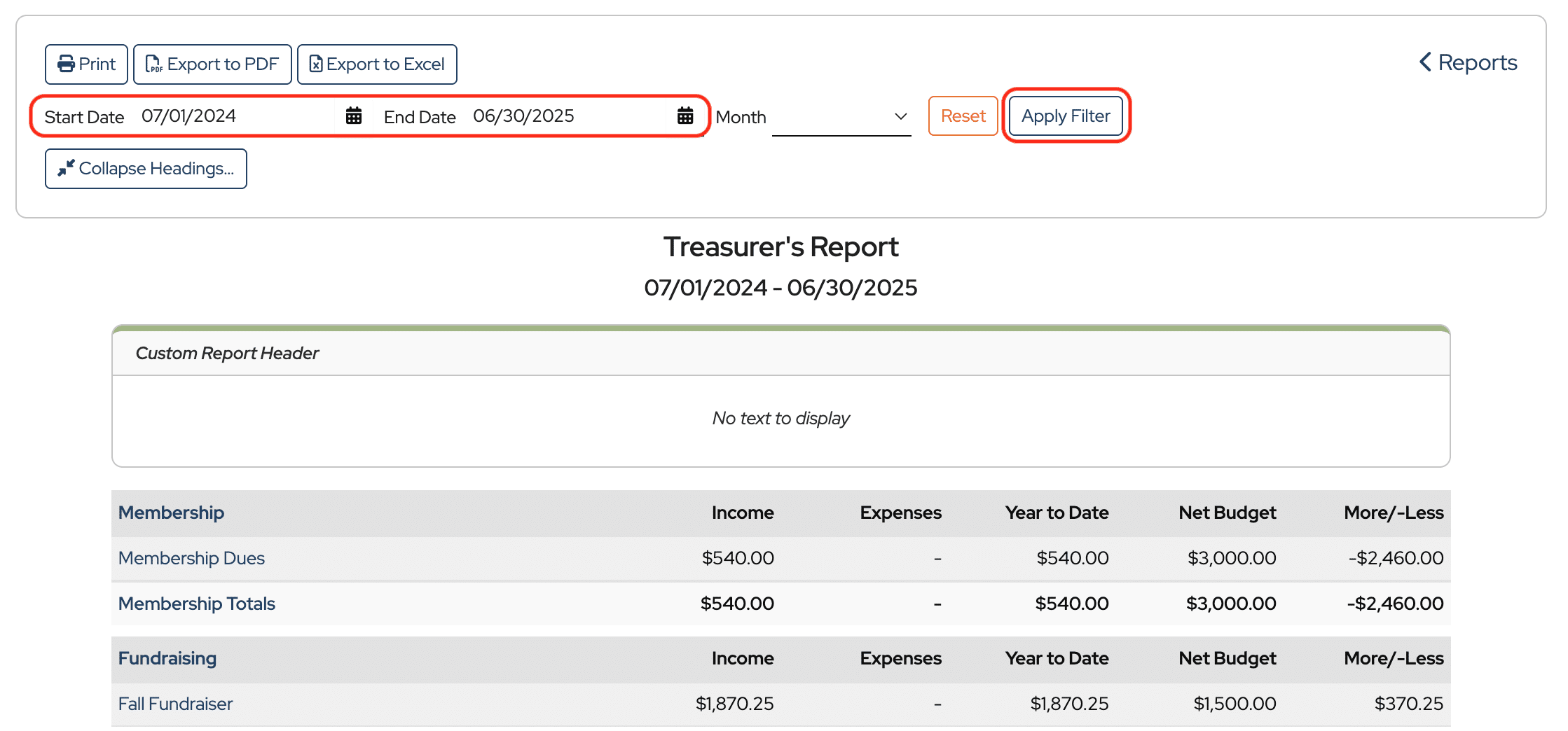
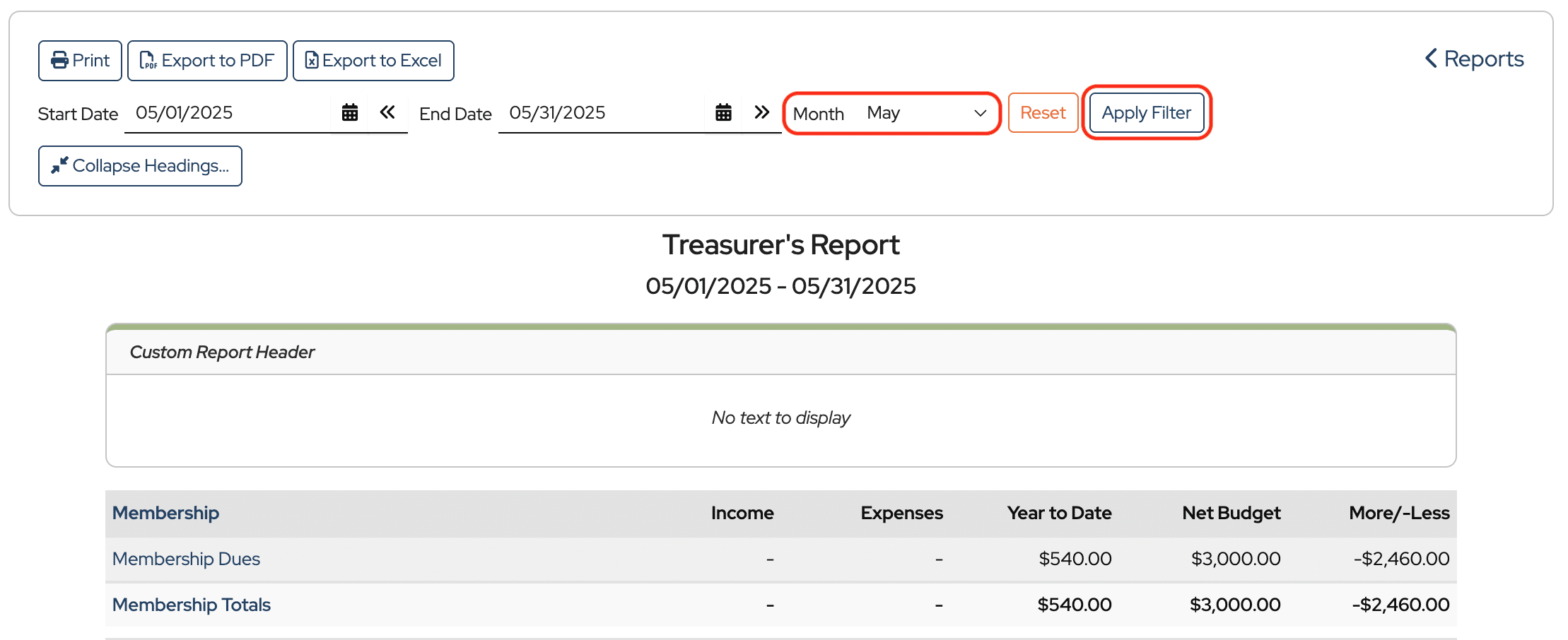
The default for this report shows the entire financial year, along with all headings and categories. To filter the report to a particular time period, enter a Start Date and/or End Date. Then click Apply Filter.
To select a particular month, choose it in the Month drop-down and click Apply Filter.
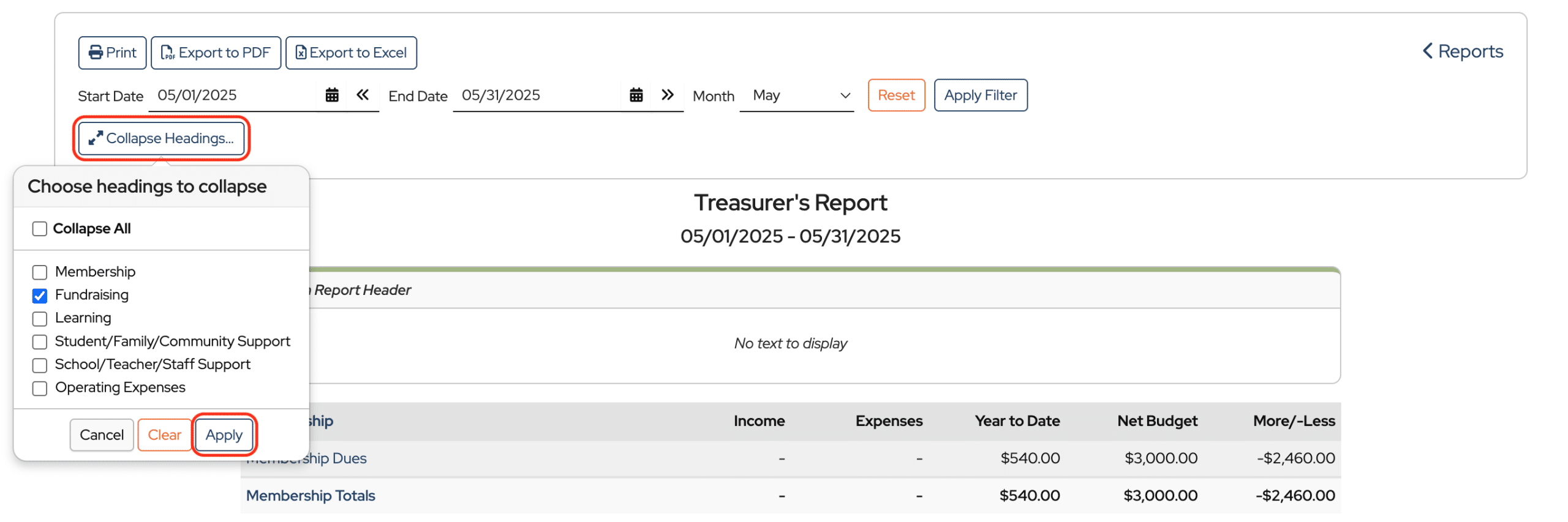
You can collapse headings to narrow down what you’d like to see in the report. Click Collapse Headings, select the headings you want to hide, then click Apply.
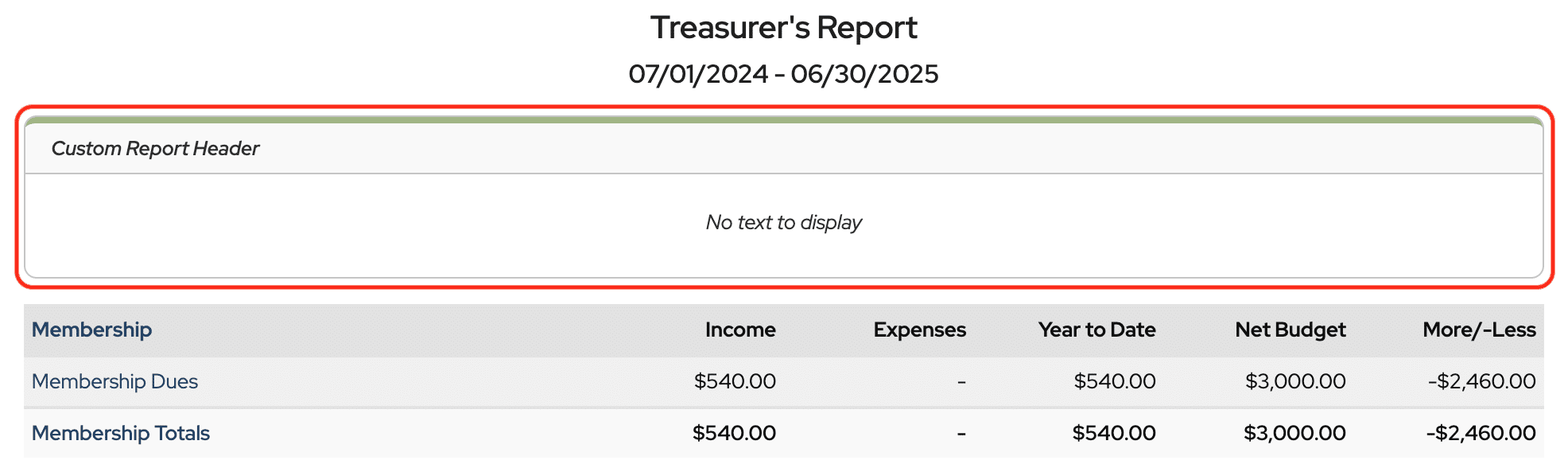
To add a custom report header, click in the box labeled Custom Report Header and add your text.
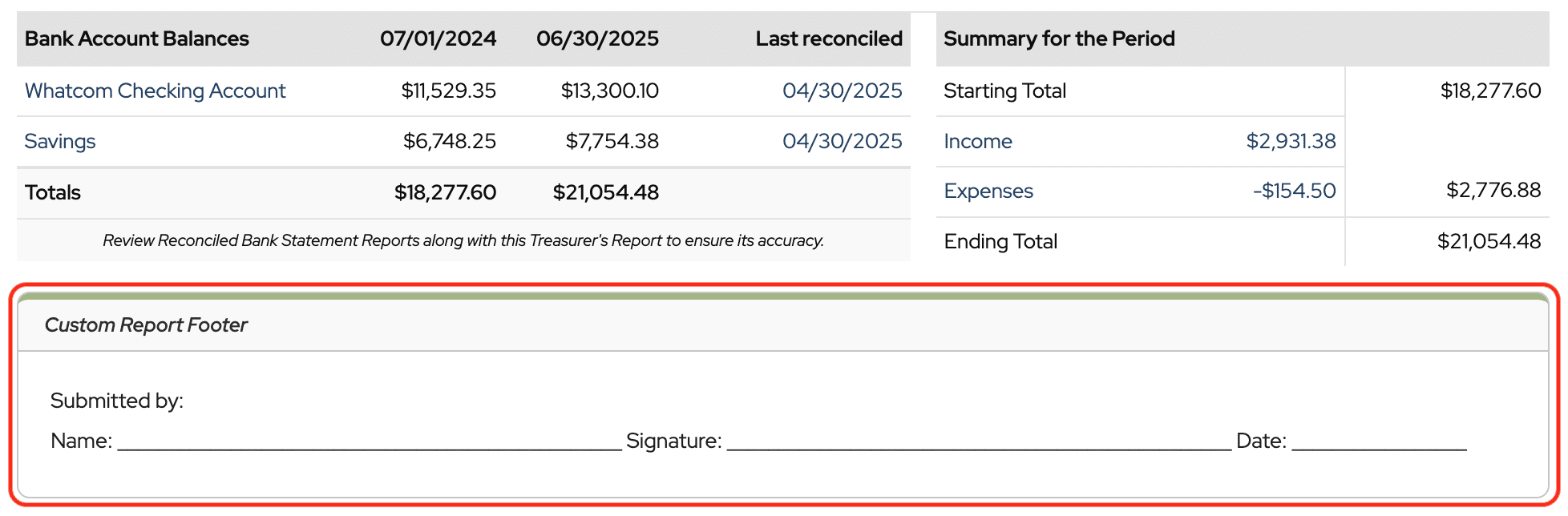
Click in the Custom Report Footer box at the bottom of the report to change or add information to the report footer.
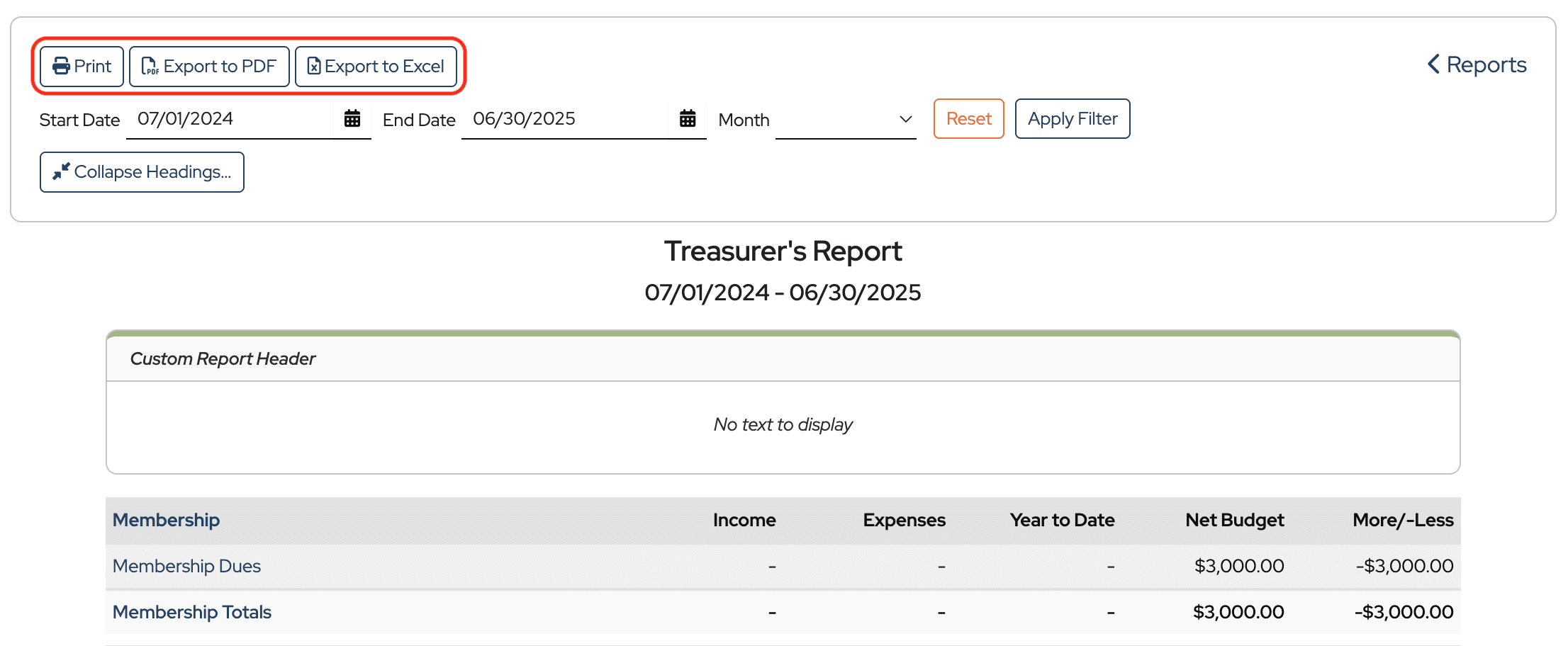
You can Print the report, Export to PDF, or Export to Excel.
Hint: Exporting to PDF and then printing the PDF usually looks the best.